Descript Review 2026: All-in-One Video Editing with AI Magic
Comprehensive Descript review: text-based video editing, AI features, pricing, and honest pros/cons. Is it worth $12/month? Complete guide for content creators.
1/28/202614 min read
Descript Review 2026: All-in-One Video Editing with AI Magic
Full disclosure: This post contains affiliate links. If you sign up through them, I may earn a commission at no extra cost to you. Prices and features are current as of January 2026, based on official sources.
What Is Descript?
Video editing is tedious. You spend hours scrubbing through timelines, cutting clips, fixing audio, and syncing everything perfectly. One 10-minute video can easily eat up 3-4 hours of editing time.
What if you could edit video as easily as editing a Word document? Just delete a sentence in the transcript, and boom — that section disappears from the video. No timeline scrubbing, no precision cuts, just simple text editing.
That's exactly what Descript does. With the video editing software market projected to reach $20.08 billion by 2032 and growing demand for accessible tools, Descript has emerged as one of the leading solutions for content creators who value speed and simplicity. I've been using it for the past few months to edit tutorial videos, podcasts, and screen recordings. It's genuinely changed how I think about video editing. What used to take 2 hours now takes 30 minutes.
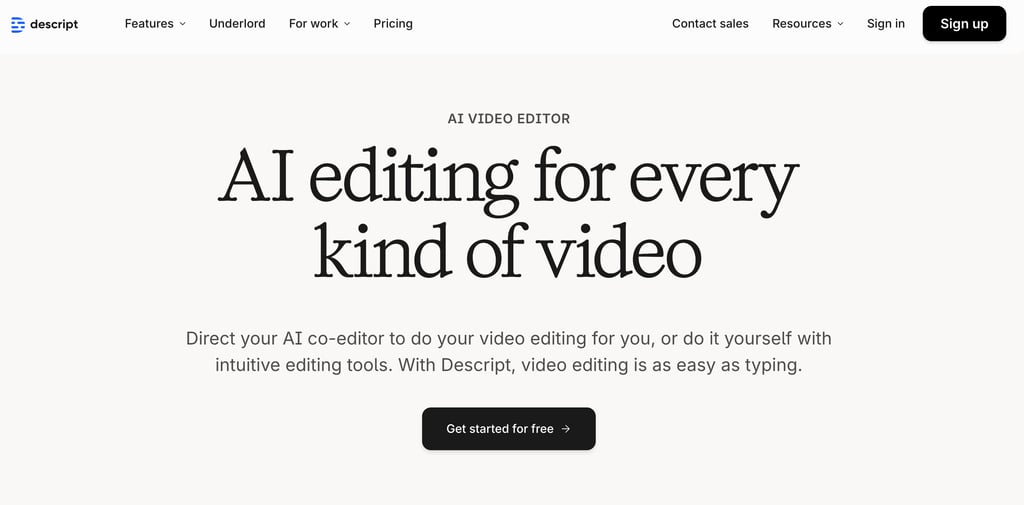
Descript is a text-based video and audio editor. Instead of editing on a traditional timeline, you edit the transcript — and the video updates automatically.
How it works:
Import your video or audio file
Descript auto-transcribes it (incredibly accurate)
Edit the transcript like a document (delete, rearrange, polish)
The video/audio updates to match your edits
Export your finished video
Think of it like this:
Traditional editing (Premiere, Final Cut) = Surgery with a scalpel
Descript = Editing a Google Doc
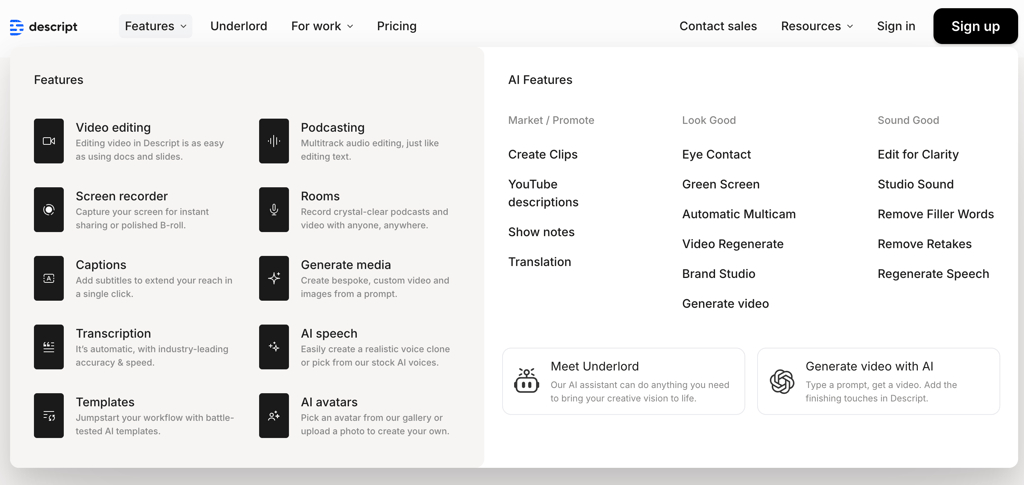
Main features:
Text-based video/audio editing
Automatic transcription (99% accurate)
Overdub (AI voice cloning for corrections)
Studio Sound (makes bad audio sound pro)
Filler word removal ("um," "uh," "like")
Screen recording
Multi-track editing
Remote recording (like Zoom, but better quality)
Who uses it:
YouTubers editing talking-head videos
Podcasters editing episodes
Course creators making tutorials
Marketers creating video content
Anyone who edits interviews or narration
Descript is best for content-heavy videos where someone is talking. It's not ideal for cinematic editing or complex motion graphics (use Premiere for that). But for 80% of YouTube/podcast content, it's perfect.
Get Started With Descript Today →
Key Features (What Can It Actually Do?)
Let me walk you through the features that matter most. I've tested all of these personally.
1. Text-Based Editing (The Core Feature)
This is Descript's superpower. You edit video by editing text.
How it works:
Upload your video
Descript transcribes it automatically (takes 1-2 minutes)
The transcript appears alongside your video
Delete a word in the transcript → it's removed from the video
Rearrange sentences → video rearranges too
Add text → Descript pauses the video to show it on screen
Example workflow:
I record a 15-minute tutorial with mistakes
Import to Descript, wait 2 minutes for transcription
Read through transcript, delete all the "ums," repeated sentences, and mistakes
Rearrange sections that were out of order
Export final video
Total time: 20 minutes (vs 90 minutes in Premiere)
What makes this powerful:
No timeline scrubbing (just read and edit text)
No precision cutting (Descript handles it)
Easy to rearrange content (cut/paste sentences)
Fast workflow (editing at the speed of reading)
My experience: I edited a 20-minute tutorial with 8 mistakes, 30+ filler words, and 2 sections that needed reordering. In Premiere, this would take 90 minutes. In Descript, it took 15 minutes.
Rating: 10/10 — This feature alone justifies Descript.
Get Started With Descript Today →
2. Automatic Transcription
Descript's transcription is scarily accurate. It understands context, punctuation, and speaker changes.
Accuracy:
95-99% accurate (better than most competitors)
Handles multiple speakers (labels them automatically)
Understands technical terms and brand names
Adds punctuation automatically (periods, commas, question marks)
Speed:
1 minute of audio = ~30 seconds to transcribe
10-minute video = 5 minutes to transcribe
60-minute podcast = 30 minutes to transcribe
Languages supported:
English (best quality)
Spanish, French, German, Portuguese, Italian, Dutch
20+ languages total
Use cases:
Create subtitles/captions automatically
Repurpose video content into blog posts
Search your video library by keyword
Edit faster (text is easier to navigate than timelines)
My experience: I uploaded a 30-minute interview with two speakers. Descript labeled both speakers correctly, transcribed 98% accurately, and added proper punctuation. Only needed to fix 3-4 words manually.
Rating: 9/10 — Best transcription I've used.
Get Started With Descript Today →
3. Overdub (AI Voice Cloning)
Overdub is Descript's AI voice cloning feature. Record your voice once, then type corrections and Descript generates audio in your voice.
How it works:
Record 10 minutes of your voice reading a script
Descript creates your Overdub voice
When you need to fix a word, type the correction
Overdub generates that word in your voice
Seamlessly inserts it into your video
Use cases:
Fix mispronounced words without re-recording
Add missing sentences after recording
Correct mistakes in published content
Save time on re-takes
Example:
I said "twenty-twenty-five" instead of "twenty-twenty-six"
Instead of re-recording the entire section, I typed "twenty-twenty-six"
Overdub generated it in my voice
Inserted seamlessly into the video
Quality:
80-85% similarity to your real voice
Good enough for small corrections
Not perfect for long sections (sounds slightly robotic)
Works best for 1-10 word fixes
Comparison to ElevenLabs:
ElevenLabs: 95% similarity, better for long-form voiceovers
Overdub: 80% similarity, better for quick corrections within editing
My take: Overdub is great for fixing mistakes without leaving Descript. But for full voiceovers, I use ElevenLabs. They complement each other.
Read my ElevenLabs review for full voiceovers →
Rating: 8/10 — Useful but not as good as dedicated voice cloning tools.
Get Started With Descript Today →
4. Studio Sound (AI Audio Enhancement)
Studio Sound uses AI to make bad audio sound professional. It removes background noise, echo, and room tone — making it sound like you recorded in a studio.
What it fixes:
Background noise (fans, traffic, air conditioning)
Echo and reverb (room acoustics)
Inconsistent volume (auto-levels everything)
Harsh frequencies (softens harsh "s" sounds)
How to use it:
Select your audio track
Click "Studio Sound"
Wait 10-30 seconds for processing
Your audio is magically clean
Before/After:
Before: Recording from laptop mic in echo-y room with fan noise
After: Sounds like a $200 USB mic in a treated room
Improvement: 80-90% better
My experience: I recorded a video in my living room (not ideal). Laptop fan running, slight echo, inconsistent volume. Studio Sound made it sound like I recorded in a proper studio. Not perfect, but 90% of the way there.
Limitations:
Can't fix terrible audio (garbage in, garbage out)
Sometimes makes voices sound slightly processed
Works best on speech (not music or sound effects)
Rating: 9/10 — Incredible for salvaging imperfect recordings.
Get Started With Descript Today →
5. Filler Word Removal
Descript can automatically detect and remove filler words like "um," "uh," "like," "you know," and "so."
How it works:
Click "Remove filler words"
Descript highlights all instances
Review and approve (or keep some for natural flow)
Descript removes them from the video
Filler words it detects:
Um, uh, er, ah
Like, you know, basically, actually
So, well, right, okay
Custom words you add
My experience: I recorded a 10-minute tutorial with 40+ "ums" and "uhs." Descript found all of them. I kept a few for natural pacing (removing ALL filler words sounds robotic), but deleted 35. Saved me 20 minutes of manual editing.
Pro tip: Don't remove all filler words. Keep 10-20% for natural flow. Completely filler-free speech sounds inhuman.
Rating: 9/10 — Huge time-saver.
Get Started With Descript Today →
6. Screen Recording
Descript includes a built-in screen recorder for tutorials, demos, and presentations.
Features:
Record screen + webcam simultaneously
Record system audio + microphone
Select specific window or full screen
Add annotations and cursor highlights
Export or edit directly in Descript
My experience: I use this for software tutorials. Hit record, demonstrate the tool, stop recording, and immediately edit in Descript. No need to export/import from another screen recorder.
Comparison to alternatives:
Loom: Easier for quick recordings, but limited editing
OBS: More powerful, but steeper learning curve
Descript: Perfect balance (easy recording + powerful editing)
Rating: 8.5/10 — Good enough to replace standalone screen recorders.
Get Started With Descript Today →
7. Multi-Track Editing
Descript supports multi-track audio and video, making it great for podcasts with multiple hosts or interviews.
Features:
Separate tracks for each speaker
Edit each track independently
Add music, sound effects, B-roll
Crossfade between tracks
Export multi-track for further editing elsewhere
Use case:
Podcast with 2 hosts
Each host on separate track
Remove one person's coughs without affecting the other
Add intro music on separate track
Export final episode
My experience: I edited a podcast interview with 2 people. Descript separated speakers automatically. I could edit each person's audio independently (removing background noise from one speaker without affecting the other).
Rating: 8/10 — Great for podcasts and interviews.
Get Started With Descript Today →
8. Remote Recording (SquadCast Alternative)
Descript includes remote recording for interviews, podcasts, and co-host sessions.
How it works:
Send a link to your guest
Both record locally (high quality, no internet lag)
Descript syncs everything when done
Edit immediately
Quality:
Records locally on each device (not through internet)
Up to 4K video, 48kHz audio
No compression or quality loss
Much better than Zoom/Skype
Comparison to Riverside.fm:
Riverside: More features, better for professional podcasters
Descript: Good enough for most use cases, included in subscription
My take: If you occasionally do remote recordings, Descript's built-in feature is fine. If you run a professional podcast, Riverside.fm is better.
Rating: 7.5/10 — Solid, but not best-in-class.
Get Started With Descript Today →
9. Collaboration Features
Descript includes powerful collaboration tools that make it easy to work with teams or clients.
How collaboration works:
Share projects with team members or clients
Multiple people can comment on specific moments in the transcript
Leave time-stamped feedback (like "fix this section at 2:35")
Assign tasks to team members
Track changes and revisions
My experience: I shared a project with a client for feedback. Instead of saying "around the 3-minute mark, change that sentence," they just highlighted the exact words in the transcript and left a comment. Super efficient.
Comparison to traditional editors:
Premiere: Requires exporting, sharing files, vague timestamps
Descript: Real-time collaboration on the transcript
Winner: Descript (way easier)
This is especially valuable for:
Content teams producing videos together
Agencies working with clients
Podcast co-hosts editing remotely
Anyone who needs feedback on video content
Rating: 8/10 — Makes teamwork significantly easier.
Get Started With Descript Today →
Pricing Plans: What Does It Actually Cost?
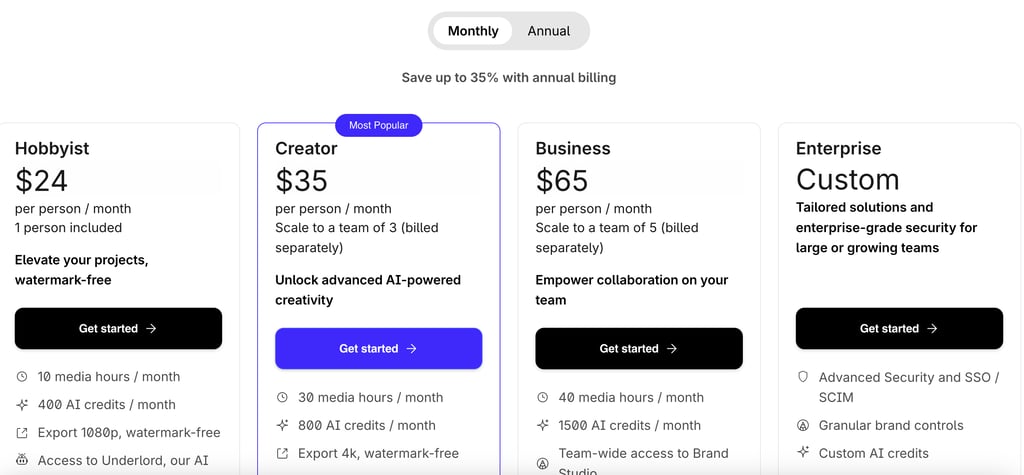
Descript's pricing is based on media hours per month and AI credits for features like Overdub and Studio Sound.
Pricing Breakdown (2026)
Hobbyist Plan ($24/mo):
10 media hours (enough for 10-20 short videos)
400 AI credits (basic AI features)
1080p exports
Good for: Testing Descript or light use
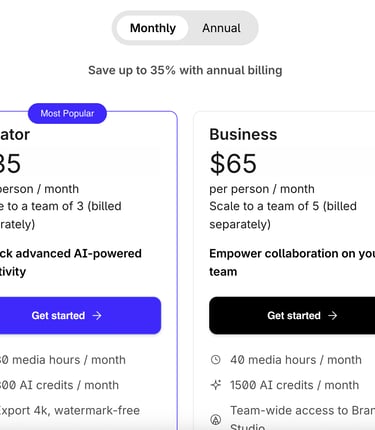
Creator Plan ($35/mo):
30 media hours (30-60 videos/month)
800 AI credits (regular AI usage)
4K exports
Can add team members
Good for: YouTubers publishing 2-3 videos/week
Business Plan ($65/mo):
40 media hours (40-80 videos/month)
1,500 AI credits (heavy AI usage)
Team collaboration features
Brand Studio access
Good for: Agencies and content teams
Enterprise (Custom):
Unlimited/custom everything
Advanced security (SSO/SCIM)
Dedicated support
Good for: Large organizations
My Pricing Recommendation:
If you're testing: Try Hobbyist plan ($24/mo) to evaluate
If you edit 5-10 videos/week: Creator plan ($35/mo) is the sweet spot
If you're a team or agency: Business plan ($65/mo) for collaboration features
Don't overpay: Most solo creators are fine with Creator plan. Only upgrade to Business if you need team features.
Pros and Cons (The Honest Truth)
Let me give you the real talk on what's great and what's not.
Pros
1. Text-based editing is revolutionary
Once you edit video via transcript, you'll never want to go back to timeline editing. It's 3-5x faster for content-heavy videos.
2. Transcription is incredibly accurate
95-99% accuracy means minimal manual fixes. Saves hours on captioning and searching through footage.
3. Studio Sound is magic
Turns mediocre audio into professional-sounding audio with one click. This feature alone justifies the subscription.
4. All-in-one workflow
Record, transcribe, edit, enhance, export — all in one tool. No more juggling 5 different apps.
5. Filler word removal saves time
Automatically finding and removing "ums" and "uhs" saves 20-30 minutes per video.
6. Great for collaboration
Share projects with team members or clients. They can leave comments on specific moments in the transcript.
7. Frequent updates
Descript ships new features constantly. The product keeps getting better.
Cons
1. Not ideal for cinematic editing
If you need complex motion graphics, color grading, or advanced effects, use Premiere or DaVinci. Descript is for content, not cinema.
2. Learning curve for timeline users
If you're used to Premiere/Final Cut, the text-based workflow feels weird at first. Takes 1-2 weeks to adjust.
3. Export times can be slow
Rendering long videos (30+ minutes) takes a while. Not as fast as Premiere.
4. Overdub quality isn't perfect
Good for quick fixes, but not as realistic as ElevenLabs for full voiceovers.
5. AI credits can run out
Heavy users of Studio Sound and Overdub might hit credit limits on lower plans.
6. Occasional bugs
Like any software, Descript has quirks. Sometimes transcription needs manual fixes, or exports fail.
7. Limited advanced audio mixing
For professional podcast mixing (compression, EQ, mastering), you'll still need Audacity or a DAW.
Overall Assessment:
The pros massively outweigh the cons for content creators. Descript is purpose-built for YouTubers, podcasters, and course creators — not Hollywood editors.
If 80% of your videos are talking-head content, tutorials, or interviews, Descript will change your life. If you're editing music videos or short films, stick with Premiere.
Rating: 4.75/5 stars
Who Should Use Descript?
Let me break down who gets the most value.
✅ Perfect For:
YouTubers editing talking-head videos
If your videos are you (or someone) talking to the camera, Descript is perfect. Edit as fast as you can read.
Podcasters (solo or multi-host)
The multi-track editing, filler word removal, and Studio Sound are designed for podcasters. This is one of Descript's core audiences.
Course creators & educators
Creating online courses with lectures, tutorials, and screen recordings? Descript's workflow is ideal.
Interview-style content
Editing conversations is painful in traditional editors. In Descript, it's easy — just delete the boring parts in the transcript.
Creators who hate timeline editing
If Premiere/Final Cut intimidates you, Descript's text-based approach is way more intuitive.
Teams collaborating on video
Share projects, leave comments, assign tasks. Great for agencies or content teams.
Maybe For:
Vloggers with lots of B-roll
Descript can handle B-roll, but it's not as smooth as Premiere. If your vlogs are 50% B-roll, you might still need a traditional editor.
Creators who want advanced color grading
Descript's color tools are basic. If color grading matters, use Premiere or DaVinci.
Not Ideal For:
Cinematic filmmakers
If you're making short films, music videos, or anything artsy, use Premiere, Final Cut, or DaVinci. Descript isn't built for this.
Motion graphics heavy content
Descript can do basic text and shapes, but for complex motion graphics, use After Effects.
People who rarely edit video
If you edit 1 video every 3 months, the subscription isn't worth it. Just use CapCut (free) or pay an editor.
What Makes Descript Best for Podcasters?
Descript has become the go-to tool for podcasters for several key reasons:
Multi-track editing: Easily edit multiple speakers on separate tracks
Filler word removal: Automatically clean up "ums" and "ahs" across all speakers
Studio Sound: Make recordings sound professional even in untreated rooms
Remote recording: Record guests in high quality without quality loss
Automatic transcription: Generate show notes and searchable transcripts instantly
Easy repurposing: Create audiograms and social clips from episodes
My experience: I produce a weekly podcast, and Descript cut my editing time from 3 hours per episode to about 45 minutes. The text-based editing makes it easy to find and fix problem sections without scrubbing through the entire timeline.
What Makes Descript Best for YouTube Creators?
For YouTube creators making talking-head videos, tutorials, or interview content:
Fast editing: Text-based editing is 3-5x faster than traditional timeline editing
Auto-captions: Generate accurate captions for accessibility and engagement
Screen recording: Built-in tool for capturing tutorials and demos
Overdub: Fix mistakes without re-recording entire sections
Social clips: Easily create YouTube Shorts from long-form content
Templates: Save time with reusable intro/outro templates
The key is that Descript excels for dialogue-heavy content where the primary focus is on what's being said rather than complex visual effects.
Is Descript Safe? Security & Privacy
One of the most common questions about Descript is whether it's safe to use, especially since you're uploading video and audio files to their servers.
The short answer: Yes, Descript is safe.
Security Measures:
Data encryption:
All files are encrypted in transit (using SSL/TLS)
Files are encrypted at rest on Descript's servers
Industry-standard AES-256 encryption
Same security standards as major cloud services like Google Drive and Dropbox
Privacy policy:
Descript doesn't sell your data to third parties
Your content is private by default
You own all rights to your content
No ads or tracking of your media files
Company reliability:
Backed by reputable investors (Andreessen Horowitz, OpenAI Startup Fund)
Used by thousands of businesses and creators worldwide
SOC 2 Type II certified (enterprise security standard)
Regular security audits and compliance reviews
What Descript Does With Your Files:
For transcription:
Files are processed on Descript's secure servers
Used to generate transcripts and enable editing features
Not used to train AI models without explicit permission
Deleted from servers when you delete projects
For Overdub:
Voice recordings stay on Descript's servers
Used only for your personal voice clone
Not shared with other users
Cannot be accessed by Descript staff without authorization
Is It Safe for Sensitive Content?
For most creators: Yes
Safe for business content, tutorials, podcasts, marketing videos
Standard security measures exceed most cloud storage services
Two-factor authentication available for added security
For highly confidential content:
Enterprise plan offers additional security features (SSO, advanced permissions)
Compliance with GDPR, CCPA, and other privacy regulations
Custom data retention policies available
Or use local editing tools for maximum control if dealing with extremely sensitive material
Descript vs Competitors (Security):
Descript security: Industry-standard encryption, SOC 2 certified, VC-backed company
Premiere Pro (Adobe): Similar security, files can be stored locally for offline editing
CapCut: Cloud-based, owned by ByteDance (same company as TikTok)
DaVinci Resolve: Can be used completely offline with local file storage
My take: Descript's security is on par with other major software companies. If you're comfortable using Google Drive, Dropbox, or Zoom, Descript has similar (or better) security standards. I've used it for client projects and business content without any concerns.
Descript vs Competitors
How does Descript compare to other editors?
Descript vs Adobe Premiere
Ease of Use:
Descript: Very easy
Adobe Premiere: Steep learning curve
Winner: Descript
Speed (for content):
Descript: 3-5x faster
Adobe Premiere: Slower for talking-head
Winner: Descript
Advanced Effects:
Descript: Limited
Adobe Premiere: Professional-grade
Winner: Premiere
Color Grading:
Descript: Basic
Adobe Premiere: Advanced
Winner: Premiere
Transcription:
Descript: Built-in, automatic
Adobe Premiere: Requires plugin
Winner: Descript
Price:
Descript: $24-65/mo
Adobe Premiere: $22.99/mo
Winner: Similar
Best For:
Descript: Content creators
Adobe Premiere: Professional editors
My take: Use Descript for 80% of content. Use Premiere for projects that need cinematic polish.
Descript vs Final Cut Pro
Similar comparison to Premiere. Final Cut is more powerful, but Descript is faster for content-heavy videos.
Descript vs DaVinci Resolve
DaVinci is free and incredibly powerful, but has a massive learning curve. Descript is easier and faster for beginners.
Descript vs CapCut
CapCut:
Free, beginner-friendly
Great for short-form content (TikTok, Reels)
Limited features for long-form
Descript:
Paid, but professional
Great for long-form (YouTube, podcasts)
More powerful editing tools
My take: Start with CapCut (free). Upgrade to Descript when you're ready for long-form content.
Real-World Use Cases
Let me show you how I use Descript.
Use Case 1: YouTube Tutorial (10-15 minutes)
Old workflow (Premiere):
Import footage (5 min)
Scrub through to find cuts (30 min)
Cut out mistakes and filler words (45 min)
Add captions manually (20 min)
Export (10 min)
Total: 110 minutes
New workflow (Descript):
Import footage (2 min)
Wait for transcription (5 min)
Read transcript, delete mistakes (15 min)
Remove filler words automatically (2 min)
Export with auto-captions (5 min)
Total: 29 minutes
Time saved: 81 minutes per video
Use Case 2: Podcast Episode (60 minutes)
Old workflow (Audacity + Premiere):
Import audio from both hosts (10 min)
Sync tracks (15 min)
Listen and cut boring parts (90 min)
Remove filler words manually (30 min)
Add intro/outro music (10 min)
Export (5 min)
Total: 160 minutes
New workflow (Descript):
Import audio (2 min)
Wait for transcription (30 min)
Read transcript, delete boring sections (30 min)
Remove filler words automatically (2 min)
Add music tracks (5 min)
Export (10 min)
Total: 79 minutes
Time saved: 81 minutes per episode
Use Case 3: Fixing a Published Video
Scenario: I published a video with a factual error at the 8:32 mark.
Old workflow:
Re-record the correction
Re-edit the entire section
Re-export and re-upload
Total: 90 minutes
New workflow (Descript with Overdub):
Open project in Descript
Type the correction
Overdub generates it in my voice (30 seconds)
Export just that section
Replace in uploaded video (if YouTube allows, or re-upload)
Total: 10 minutes
Getting Started with Descript
Ready to try it? Here's how to start.
Step 1: Sign Up
Click "Sign Up"
Sign up with email or Google
Download the desktop app (Mac or Windows)
Step 2: Import Your First Video
Open Descript
Click "New Project"
Drag a video file into Descript
Wait for transcription (1-2 minutes per 10-minute video)
Step 3: Edit the Transcript
Read through the transcript
Delete words, sentences, or paragraphs
The video updates automatically
Rearrange sections by cutting/pasting text
Step 4: Apply AI Features
Click "Studio Sound" to enhance audio
Click "Remove filler words" to clean up speech
Add captions (auto-generated from transcript)
Step 5: Export
Click "Publish" → "Export"
Choose resolution (1080p, 4K)
Export as MP4
Upload to YouTube/podcast platform
Pro tip: Watch Descript's official tutorials on YouTube. They're excellent.
Final Verdict: Is Descript Worth It?
Yes — if you edit talking-head content regularly.
Descript is the fastest, easiest way to edit content-heavy videos in 2026. The text-based editing workflow is genuinely revolutionary. Once you try it, timeline editing feels archaic.
Here's my bottom line:
If you edit 2+ videos or podcasts per week, Descript will save you 5-10 hours per month. At $24-35/month, that's an insane ROI.
If you edit 1 video per month, stick with free tools (CapCut, DaVinci) or hire an editor.
Who Gets the Most Value:
Hobbyist plan ($24/mo) is perfect for:
Part-time creators
Testing the platform
Creator plan ($35/mo) is perfect for:
YouTubers publishing 2-3 videos/week
Podcasters with weekly episodes
Course creators making tutorials
Business plan ($65/mo) is worth it for:
Content teams
Agencies with multiple clients
Professional podcasters
The Bottom Line:
Rating: 4.75/5 stars
Descript isn't perfect (not ideal for cinematic editing, Overdub isn't as good as ElevenLabs), but it's the best tool for content creators who value speed and simplicity.
The ROI is undeniable. If you're tired of timeline editing, try Descript.
Get Started With Descript Today →
Related Posts: