How to Clone Your Voice with AI (Step-by-Step Guide for Beginners)
Learn how to clone your voice with AI in 6 easy steps. Complete beginner's guide to creating realistic AI voice clones using ElevenLabs. Includes troubleshooting tips and pro strategies.
1/25/202613 min read
How to Clone Your Voice with AI (Step-by-Step Guide for Beginners)
Full disclosure: This post contains affiliate links. If you sign up through them, I may earn a commission at no extra cost to you. Prices and features are current as of January 2026, based on official sources.
Voice cloning has transformed from science fiction to everyday reality. With the AI voice cloning market projected to reach $3.8 billion by 2030, growing at 23.5% annually, the technology has become accessible to individual creators, not just big studios. Whether you're a YouTuber creating voiceovers, a podcaster perfecting intros, or an educator producing course content, AI voice cloning can save hours of recording time while maintaining professional quality.
In this guide, I'll walk you through exactly how to clone your voice using ElevenLabs, the leading platform for realistic voice cloning in 2026. I've used this process dozens of times for my own content, and I'll show you the exact steps, common pitfalls, and pro tips to get the best results.
What Is AI Voice Cloning?
AI voice cloning creates a digital copy of your voice by analyzing audio samples and learning your unique vocal characteristics. This synthetic voice can then generate speech from any text input, sounding remarkably close to your natural voice.
How It Works:
When you upload a voice sample, the AI voice cloning technology analyzes:
Your unique tone and timbre: The fundamental quality that makes your voice recognizable
Your speaking pace and rhythm: How fast you talk and your natural cadence
Your accent and pronunciation patterns: Regional accents, word emphasis, specific phonetic quirks
Your natural inflections and emphasis: How you stress certain words, question intonation, emotional range
The AI then builds a voice model—a mathematical representation of your voice characteristics—that can generate new speech in your voice from any text you provide.
Voice Cloning vs Text-to-Speech: What's the Difference?
Many people confuse voice cloning with standard text-to-speech (TTS). Here's the key distinction:
Traditional Text-to-Speech:
Uses pre-made, generic AI voices (like Siri, Alexa, or Google Assistant)
Same voice available to everyone
Limited personalization
Good for accessibility, basic voiceovers
AI Voice Cloning:
Creates YOUR specific voice as a custom voice model
Unique to you (or whoever's voice you clone)
Captures personal speaking style, accent, emotion
Professional-quality synthetic voices for branded content
The result: Voice cloning produces synthetic speech that sounds like you, while TTS sounds like a generic AI.
Understanding Voice Cloning Technology
Before we dive into the how-to, it's helpful to understand what's happening under the hood of voice cloning technology.
The Science: Deep Learning and Neural Networks
Modern AI voice cloning uses deep learning algorithms—specifically, neural networks trained on thousands of hours of human speech. These models learn patterns in:
Acoustic properties: Pitch, frequency, resonance
Prosody: Rhythm, stress, intonation
Phonetics: How you pronounce specific sounds
Emotional range: Variations in tone for different contexts
When you provide voice data (your audio sample), the model fine-tunes itself to your specific voice characteristics, creating a personalized voice model.
Two Types of Voice Cloning:
1. Instant Voice Cloning (Quick Clone):
Requires: 1-2 minutes of audio
Quality: 70-80% similarity to your original voice
Speed: Generates in seconds
Best for: Quick tests, casual use
2. Professional Voice Cloning (Deep Clone):
Requires: 10-30 minutes of audio
Quality: 90-95% similarity (nearly indistinguishable)
Training time: 10-20 minutes to build voice model
Best for: Professional content, long-form narration
The more voice data you provide, the better the AI can replicate your unique voice characteristics.
What Makes ElevenLabs the Best for Voice Cloning?
While several platforms offer voice cloning (Descript, Murf AI, Play.ht, Resemble AI), ElevenLabs leads in 2026 for several reasons:
Voice quality and realism:
95% voice similarity in Professional mode (vs 70-80% for competitors)
Captures emotion and subtle tone better than alternatives
Handles long-form content without robotic artifacts
Natural breathing and pausing
Technology advantages:
Advanced neural networks trained on diverse voice data
Better handling of accents and pronunciation quirks
Superior emotional range and expressiveness
Fewer mispronunciations and glitches
Practical benefits:
Affordable ($5-22/month vs $50+ for alternatives)
Fast generation (30 seconds for 5 minutes of audio)
Simple interface (no technical expertise required)
Commercial usage rights on all paid plans
I've tested all the major voice cloning platforms, and ElevenLabs consistently produces the most human-sounding clones. When I play my cloned voice for people, they can't tell it's synthetic speech.
Read my full ElevenLabs review here →
Common Use Cases for Voice Cloning
Before we start, here's what you can do with a cloned voice:
Content creation:
YouTube voiceovers without recording every word
Podcast intros/outros with consistent quality
Video course narration at scale
Social media content (Reels, TikToks, Shorts)
Business applications:
Marketing videos with branded voice
Product demos and tutorials
Internal training materials
Audiobook narration
Multilingual content:
Your voice speaking other languages (with ElevenLabs dubbing)
Reaching international audiences with your authentic voice
Language learning content
Time-saving workflows:
Fix mistakes without re-recording entire sections
Create variations of content quickly
Batch-produce voiceovers for multiple videos
Maintain voice consistency across projects
The time savings are real. I went from spending 2 hours recording and editing voiceovers to generating perfect audio in 10 minutes.
What You'll Need Before Starting
Before we clone your voice, gather these things:
1. A Recording of Your Voice (3-30 minutes)
What to record:
Read a script, article, or book naturally
Speak at your normal pace (not too fast or slow)
Use your regular speaking voice (not performance voice)
Include variety (different emotions, emphasis, pacing)
Recording tips for best results:
Quiet environment: No background noise, echo, or fan sounds
Good microphone: Phone mic works, USB mic is better
Consistent volume: Not too loud, not too quiet
Clear pronunciation: Speak naturally but clearly
Varied content: Questions, statements, different emotions
How long to record:
Instant Voice Cloning: 1-2 minutes (decent quality)
Professional Voice Cloning: 10-30 minutes (best quality, 95% similarity)
I recommend recording 10-15 minutes for the best results. More voice data = better voice model.
2. ElevenLabs Account (Starter or Higher)
You'll need an account to clone your voice.
Starter plan ($5/month):
30,000 credits/month
Instant voice cloning
Commercial usage rights
Creator plan ($11-22/month): ⭐ RECOMMENDED
100,000 credits
Professional voice cloning (95% accuracy)
Commercial usage rights
This is what I use
3. A Script to Test Your Clone
Once you've cloned your voice, you'll want to test it. Prepare a short script (100-200 words) to generate a sample.
Example test script:
"Welcome back to the channel. In today's video, I'm going to show you how to use AI to create professional voiceovers in minutes. This is a game-changer for content creators who want to save time without sacrificing quality. Let's dive in."
Step 1: Record Your Voice Sample
This is the most important step. A high-quality recording creates a high-quality voice clone. A poor recording creates robotic synthetic voices.
How to Record (Option 1: Phone)
Using iPhone:
Open Voice Memos app
Find a quiet room (close windows, turn off fans)
Hold phone 6-8 inches from your mouth
Hit record and read your script naturally
Stop when done, save the file
Using Android:
Open Voice Recorder app (or download one)
Find a quiet room
Hold phone 6-8 inches from your mouth
Record your script naturally
Save the audio file
How to Record (Option 2: Computer)
Using Mac:
Open QuickTime Player
File → New Audio Recording
Click the red record button
Read your script into your laptop mic
Stop and save as .mp3 or .wav
Using Windows:
Open Voice Recorder app
Click the microphone button
Read your script
Stop and save
Using Audacity (Best Quality):
Download Audacity (free)
Plug in a USB microphone (optional but recommended)
Click record, read your script
Export as .mp3 or .wav
What to Say in Your Recording
Option A: Read an article or book chapter
Pick something you'd naturally read aloud
Include variety (questions, statements, emphasis)
10-15 minutes of content
Option B: Script your own content
Create a script that includes:
Neutral statements ("In this video, I'll show you...")
Questions ("Have you ever wondered why...?")
Excitement ("This is incredible!")
Explanations ("The reason this works is...")
Example 10-minute script structure:
Introduction (2 minutes)
Explanation section (4 minutes)
Examples (2 minutes)
Conclusion (2 minutes)
Pro tip: Speak naturally, not like a robot. Include natural pauses, occasional "ums" (sparingly), and emotion. The AI learns from how YOU actually sound, not how you think you should sound.
Recording Quality Checklist
Before uploading your recording, verify:
✅ No background noise (no traffic, fans, echo)
✅ Consistent volume throughout
✅ Clear pronunciation (not mumbling)
✅ Natural pacing (not rushed or too slow)
✅ Variety in tone (not monotone)
✅ File format: .mp3, .wav, .m4a, or .flac
✅ File size: Under 100MB
If your recording has issues:
Use Audacity to remove background noise
Re-record in a quieter space
Speak closer to the mic (but not too close - avoid "popping" sounds)
Step 2: Sign Up for ElevenLabs
Now let's get your ElevenLabs account set up.
Create Your Account
Go to ElevenLabs: https://try.elevenlabs.io/aiforcontent
Click "Get Started" or "Sign Up"
Choose signup method:
Sign up with Google (fastest)
Or enter email and create password
Verify your email (check inbox/spam)
You're in!
Choose Your Plan
My recommendation: Start with the Starter plan ($5/mo) to try instant cloning. If you like it, upgrade to Creator ($11-22/mo) for professional-quality voice clones with 95% similarity.
Step 3: Upload Your Voice Sample and Create Your Clone
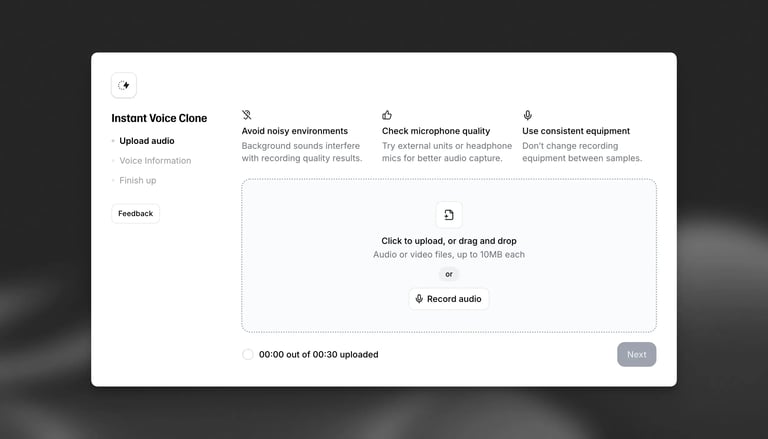
Now we'll create your voice model.
Navigate to Voice Lab
Log into ElevenLabs
Click "Voices" in the left sidebar
Click "Add Voice" (top-right corner)
Select "Instant Voice Cloning" or "Professional Voice Cloning"
Which to choose?
Instant: 1-2 minutes of audio, decent quality (7/10 similarity)
Professional: 10-30 minutes of audio, best quality (9/10 similarity)
I'll show you Professional since it's what I use, but the process is similar for Instant.
Upload Your Recording (Professional Cloning)
Click "Professional Voice Cloning"
Name your voice (e.g., "My Voice," "John Narrator," etc.)
Click "Upload Audio Files"
Select your voice recording from your computer/phone
Wait for upload (30 seconds - 2 minutes depending on file size)
Set Voice Parameters (Optional)
You can adjust:
Gender: Male/Female (auto-detected usually)
Age: Young/Middle/Older
Accent: Auto-detected from your recording
Pro tip: Leave these on auto-detect. ElevenLabs is smart enough to figure it out from your recording.
Generate Your Voice Model
Click "Create Voice" or "Train Model"
Wait 10-20 minutes while the AI trains on your voice data
You'll get an email when it's ready
Your voice clone is now available in your Voice Library
What happens during training?
The AI analyzes your audio sample and builds a custom voice model by learning:
Your pitch and tone patterns
Your speaking rhythm and pace
Your pronunciation quirks
Your emotional inflections
Your unique voice characteristics
The more audio you provide, the better the voice model captures your original voice.
Step 4: Test Your Voice Clone
Time to see how good your synthetic voice sounds!
Generate Your First Sample
Click "Speech Synthesis" or "Text to Speech" in the left sidebar
Select your cloned voice from the dropdown (it'll have the name you gave it)
Type a test script (100-200 words)
Click "Generate"
Wait 10-30 seconds
Listen to the result
Example Test Scripts
Script 1 (Neutral):
"Hello, this is a test of my AI voice clone. I'm checking to see how accurately it captured my tone, pacing, and overall sound. So far, I'm impressed with the results."
Script 2 (Conversational):
"Hey everyone, welcome back to the channel! Today I want to talk about something that's been blowing my mind lately. AI voice cloning is absolutely incredible, and I'm going to show you exactly how it works."
Script 3 (Varied Emotion):
"Have you ever wondered how AI can replicate a human voice? It's actually fascinating. The technology analyzes your unique vocal patterns and recreates them with stunning accuracy. This is game-changing for content creators."
Evaluate Your Clone
Listen carefully and ask:
✅ Does it sound like me? (pitch, tone, accent)
✅ Is the pacing natural? (not too fast or slow)
✅ Does it handle emphasis correctly? (important words stand out)
✅ Are there any robotic artifacts? (glitches, weird pauses)
✅ Does it capture my speaking style? (formal, casual, energetic)
If it sounds good: Congrats! You have a working voice clone producing realistic synthetic speech.
If it sounds off: See the troubleshooting section below.
Step 5: Fine-Tune Your Clone (Optional)
ElevenLabs gives you controls to adjust how your synthetic voices sound.
Voice Settings
Stability (0-100%):
High (80-100%): More consistent, less variation (good for narration)
Low (0-50%): More expressive, more emotion (good for storytelling)
Default: 50% (balanced)
Clarity + Similarity Enhancement (0-100%):
High (80-100%): Clearer pronunciation, closer to your original voice
Low (0-50%): More natural flow, less robotic
Default: 75% (recommended)
Style (0-100%):
High (80-100%): More exaggerated delivery
Low (0-50%): More neutral delivery
Default: 0% (neutral)
My Recommended Settings
For most use cases:
Stability: 60-70%
Clarity: 75%
Style: 0%
For tutorials/narration:
Stability: 80%
Clarity: 85%
Style: 0%
For storytelling/emotion:
Stability: 40%
Clarity: 65%
Style: 20%
Pro tip: Test different settings with the same script to hear the difference. Find what sounds most natural for your content type.
Step 6: Generate Voiceovers with Your Clone
Now let's use your voice clone for real content.
Creating a YouTube Voiceover
Write your video script (or paste it into ElevenLabs)
Select your cloned voice
Adjust settings (if needed)
Click "Generate"
Download the audio file (MP3 or WAV)
Import into your video editor (Premiere, DaVinci, CapCut)
Sync to your video
Pro tip: Break long scripts into sections (500-1,000 words each). Generate each section separately, then stitch them together in your editor. This gives you more control and better quality.
Creating a Podcast Intro
Write your intro script (30-60 seconds)
Generate with your voice clone
Download as MP3
Add music underneath (use royalty-free music)
Export final intro
Creating an Audiobook Narration
Paste a chapter (or section) into ElevenLabs
Generate audio
Download
Repeat for each chapter
Combine audio files in Audacity or your DAW
Note: For audiobooks, use Professional cloning and high stability settings (80%+) for consistency across hours of narration.
Best Use Cases for AI Voice Cloning
AI voice cloning excels in specific scenarios where consistency, scalability, and time-saving matter most.
Content Creation at Scale
YouTube channels:
Weekly video voiceovers without recording sessions
Consistent voice across all content
Quick corrections without re-recording entire video
Podcasting:
Consistent intros/outros across episodes
Guest intro reads in your voice
Quick edits without booking studio time
Online courses:
Hours of course narration without voice fatigue
Easy updates when content changes
Multiple course modules with consistent voice quality
Multilingual Content Production
Using ElevenLabs' dubbing feature:
Your voice speaking Spanish, French, German, etc.
Expand to international markets with authentic voice
Maintain brand consistency across languages
Business Applications
Marketing:
Product demo videos
Explainer videos
Social media content (consistent brand voice)
Training materials:
Internal training videos
Onboarding content
Product documentation with narration
Customer service:
Interactive voice responses (IVR)
Automated phone systems with human-sounding voice
FAQ responses in branded voice
Time-Critical Workflows
Voice cloning shines when you need:
Quick turnaround: Generate voiceovers in minutes vs hours of recording
Batch production: Create 10 videos worth of voiceovers in one session
Last-minute changes: Fix errors without re-recording everything
Real-world example: I produce weekly YouTube tutorials. Before voice cloning, I'd spend 2 hours recording and editing audio per video. Now I generate perfect voiceovers in 10 minutes. That's 1 hour 50 minutes saved per video, or 7.5 hours per month.
Troubleshooting Common Issues
Problem 1: Clone Sounds Robotic
Causes:
Recording quality was poor (background noise, echo)
Not enough training data (only 1-2 minutes recorded)
Monotone recording (no emotion or variation)
Solutions:
Re-record in a quieter space with better audio quality
Record 10-15 minutes instead of 2 minutes for better voice data
Speak with more natural emotion and variation
Use Professional cloning instead of Instant for better voice model
Problem 2: Mispronounced Words
Causes:
Uncommon words the AI doesn't recognize
Technical terms or brand names
Numbers, dates, acronyms
Solutions:
Spell words phonetically (e.g., "API" → "A-P-I" or "ay-pee-eye")
Write out numbers ("2026" → "twenty twenty-six")
Add commas for pauses around tricky words
Use pronunciation guides in your script
Problem 3: Wrong Emotion or Emphasis
Causes:
AI didn't interpret emotion from text correctly
Punctuation doesn't convey emphasis well
Solutions:
Use ALL CAPS for emphasis: "This is INCREDIBLE"
Add punctuation: "Really? That's amazing!"
Use italics in your script: "I can't believe this works"
Lower stability setting (allows more emotional range)
Problem 4: Unnatural Pauses or Pacing
Causes:
Punctuation issues in script
Sentences too long or complex
Solutions:
Break long sentences into shorter ones
Use commas, periods, and dashes for natural pauses
Add line breaks between paragraphs
Read your script aloud to check flow
Problem 5: Clone Doesn't Sound Like Me
Causes:
Original recording was too short (under 5 minutes)
Recording quality was inconsistent
You have a unique accent or speaking style AI struggled with
Solutions:
Record 20-30 minutes of audio (more voice data = better voice model)
Ensure recording is consistent quality throughout
Use Professional cloning (not Instant) for 95% similarity
Re-train your voice clone with better audio samples
Pro Tips for Best Results
1. Record in Multiple Sessions
Don't record 15 minutes straight. Record 3-5 minute segments with breaks. This keeps your voice consistent and prevents fatigue, resulting in better voice data for the AI.
2. Include Variety in Your Training Audio
Include:
Questions ("Why does this happen?")
Statements ("This is how it works.")
Excitement ("This is amazing!")
Explanations ("The reason is...")
The more variety in your voice samples, the better your voice clone handles different contexts and produces more versatile synthetic voices.
3. Use a Pop Filter
If you have a USB microphone, use a pop filter to reduce harsh "P" and "B" sounds. This makes your recording cleaner and improves the final voice model.
4. Test on Different Content Types
Generate:
A tutorial script
A casual vlog script
A formal narration script
See how your voice clone handles each. You might need to adjust settings per use case.
5. Save Preset Settings
Once you find settings you like (stability, clarity, style), save them as a preset in ElevenLabs. This saves time when generating future voiceovers.
6. Combine with Music/SFX
Your AI voiceover sounds even more professional when you add:
Background music (subtle, low volume)
Sound effects (where relevant)
Intro/outro music
Use royalty-free music from YouTube Audio Library or Epidemic Sound.
The Voice Cloning Process: Step-by-Step Summary
For quick reference, here's the complete voice cloning process:
Preparation:
Record 10-15 minutes of voice data in quiet environment
Sign up for ElevenLabs ($5-22/month)
Prepare test script
Creating your voice model: 4. Upload audio files to Voice Lab 5. Select Professional Voice Cloning 6. Wait 10-20 minutes for AI training 7. Voice clone is ready
Using your clone: 8. Generate test samples 9. Adjust voice settings (stability, clarity, style) 10. Create voiceovers for real content 11. Download and use in your projects
Time investment:
Initial setup: 30-45 minutes
Per voiceover after setup: 5-10 minutes
Legal and Ethical Considerations
Can I Clone Anyone's Voice?
Legally: You need permission to clone someone else's voice. Cloning without permission can violate privacy laws and ElevenLabs' terms of service.
Your own voice: Totally fine. You own your voice.
Consenting person: Fine if they give written permission.
Public figure without permission: Not allowed (and potentially illegal).
Commercial Use
Free plan: Non-commercial use only (no YouTube monetization, no selling courses).
Paid plans ($5+/month): Full commercial usage rights. You can:
Monetize YouTube videos
Sell online courses
Use in client work
Create audiobooks for sale
Disclosure Requirements
If you use AI voiceovers in content, consider disclosing it:
YouTube: Mention in description ("Voiceover generated with AI")
Podcasts: Brief mention in intro or show notes
Audiobooks: Note in book description
This builds trust and avoids misleading your audience about synthetic voices.
What to Do Next
You now have a working AI voice clone! Here's how to make the most of it:
Immediate Next Steps:
Generate a full voiceover for your next video/podcast
Experiment with settings to find your perfect sound
Create templates for different content types (intros, tutorials, narration)
Advanced Uses:
Multilingual content:
Use ElevenLabs' dubbing feature to translate your voice into other languages
Expand to international audiences with your authentic voice
Batch production:
Write scripts for 10 videos
Generate all voiceovers in one session
Save hours of recording time
Voice variations:
Create "excited" vs "calm" versions of your clone by adjusting settings
Match voice to content type
Long-Term Strategy:
Update your voice model every 6 months with fresh recordings (your voice changes slightly over time)
Create multiple voice clones for different personas (casual vs professional)
Combine with video tools (Descript, Premiere) for full automation
Final Thoughts
AI voice cloning is one of the most practical AI tools for content creators in 2026. It's not about replacing your real voice — it's about giving you flexibility and saving time.
I still record myself for personal vlogs and on-camera content. But for tutorials, narration, and batch content? Voice cloning technology is a game-changer.
The time savings are real:
Before: 2 hours to record, edit, and polish a voiceover
After: 10 minutes to generate perfect synthetic speech
Savings: 1 hour 50 minutes per video
Over a month (4 videos), that's 7.5 hours back in your life.
The technology has reached the point where synthetic voices are nearly indistinguishable from original voice recordings. Combined with the affordability (starting at $5/month) and ease of use, there's never been a better time to try voice cloning.
Start with the free plan, test it out, and upgrade if you love it. Most people are shocked by how realistic their voice clone sounds.
Ready to clone your voice and create professional synthetic voices?
Related Posts: