Canva AI Review 2026: Is It Worth Upgrading to Pro?
I tested every AI feature in Canva's Magic Studio to find out if upgrading to Pro is actually worth it. Here's my honest review covering Magic Design, Magic Write, pricing, and who should (and shouldn't) pay.
2/28/20267 min read
Canva AI Review 2026: Is It Worth Upgrading to Pro?
Canva has quietly become one of the most powerful AI design tools on the market — and most people are still using it like it's 2020.
I've been using Canva for years to create blog graphics, YouTube thumbnails, and social media posts for my content. But when they rolled out Magic Studio and started packing the platform with AI features, it went from "nice template tool" to genuinely impressive creative suite. Magic Design, Magic Write, Magic Media, background removal, AI image generation — there's a lot going on under the hood now.
The question is: are the AI features actually good enough to justify upgrading to Pro? Or can you get by on the free plan?
I've tested every major AI feature in Canva to answer that question. Here's my honest take on what works, what doesn't, and who should (and shouldn't) be paying for it.
Full disclosure: This post contains affiliate links. If you sign up through them, I may earn a commission at no extra cost to you.
What Is Canva Magic Studio?
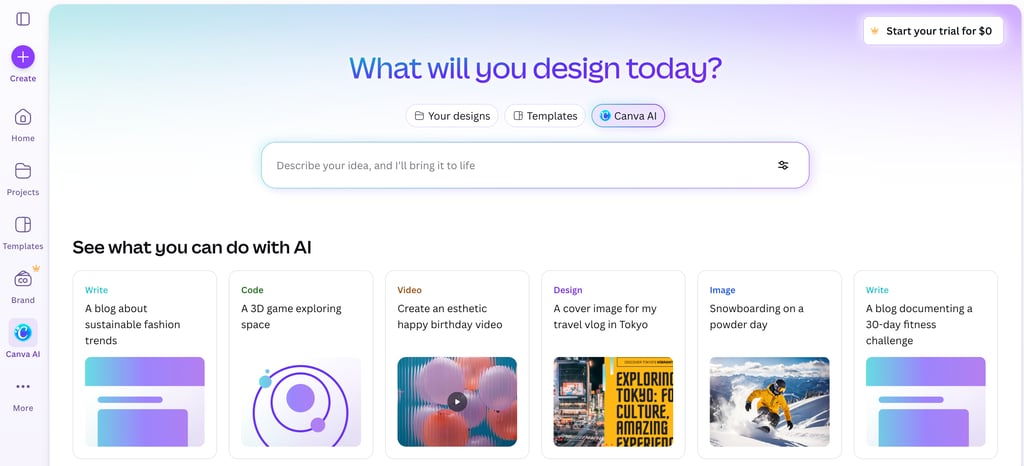
Magic Studio is Canva's suite of AI-powered tools built directly into the design platform. It's not a separate app — everything lives inside the same editor you already know. Think of it as an AI layer on top of Canva's existing template and design system.
The AI features are powered by a mix of OpenAI's technology, Stability AI, and Canva's own models. According to Canva, Magic Studio has been used over 5 billion times since launch, so clearly people are finding it useful.
Here's what's included in Magic Studio:
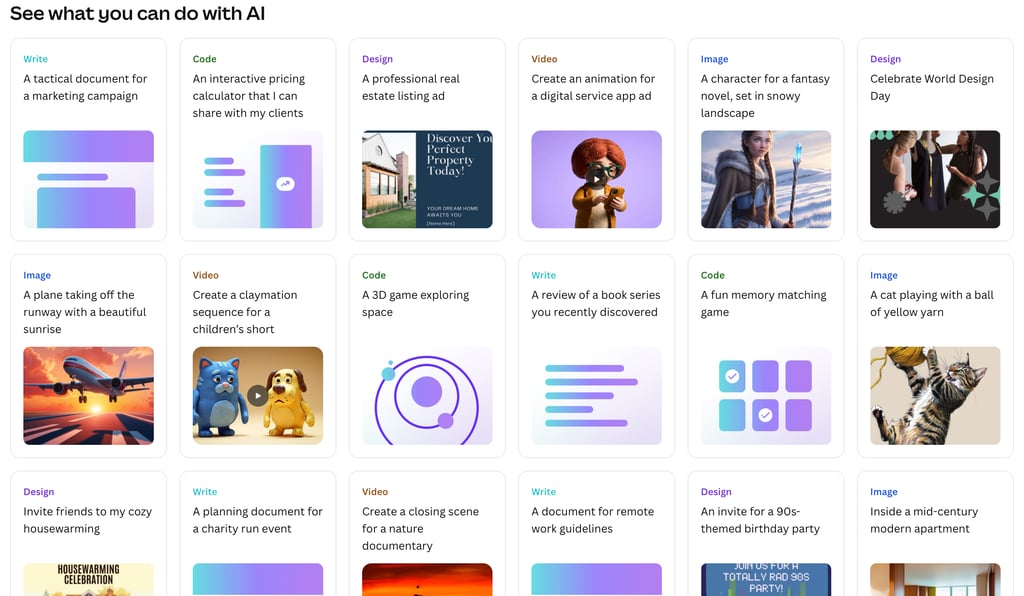
Magic Design — Generate complete designs from a text prompt or uploaded image. You describe what you want (like "Instagram post for a coffee shop grand opening") and Canva creates multiple design options for you to customize.
Magic Write — AI text generation powered by OpenAI. It can write copy, generate outlines, summarize text, expand on ideas, or rewrite content in a different tone. Users have written over 10 billion words with it so far.
Magic Media — Text-to-image and text-to-video generation. Describe what you want to see and Canva creates it. Useful for custom visuals when stock photos don't cut it.
Magic Edit — Select any part of an image and describe what you want to change. Want to swap the background or add an object? Just describe it.
Magic Eraser — Remove unwanted objects from photos with one click. Works surprisingly well for quick cleanups.
Magic Grab — Separate subjects from backgrounds so you can reposition elements in your design.
Magic Switch — Resize and reformat designs for different platforms instantly. Turn an Instagram post into a LinkedIn banner, YouTube thumbnail, and Pinterest pin in seconds.
Magic Morph — Transform text and shapes with AI-generated textures and styles. Turn the word "sale" into balloon letters or neon text.
Magic Animate — Add motion and animation effects to any design element automatically.
Background Remover — One-click background removal for photos. This alone used to cost $10/month from other tools.
That's a lot of AI packed into one platform. But how well does it actually work?
What I Like About Canva AI
The AI features actually save time. This isn't gimmicky AI slapped onto a product for marketing purposes. Magic Design genuinely cuts my thumbnail creation time from 15-20 minutes down to about 5. I type a prompt, pick from the generated options, tweak the colors and text, and I'm done. For someone creating content on a regular schedule, that adds up fast.
Magic Write is better than expected. I was skeptical about an AI writer built into a design tool, but it's solid for short-form copy. I use it for social media captions, thumbnail text ideas, and quick headline brainstorming. It's not going to replace a dedicated writing tool for long-form content, but for the kind of copy you need inside a design? It does the job well.
Background Remover is worth the Pro price alone. If you're creating YouTube thumbnails or any content where you need to cut yourself out of a photo, this feature is essential. It works in one click, handles hair and complex edges well, and would cost you $10/month or more from standalone tools like remove.bg. Getting it bundled with everything else in Pro is a steal.
Magic Switch is a massive time saver for social media. Creating one design and instantly reformatting it for Instagram, YouTube, LinkedIn, Pinterest, and Twitter used to take me ages. Now it's literally one click per platform. If you're posting across multiple social media channels, this feature alone justifies the upgrade.
The template library is unmatched. Canva has over 100 million design assets and templates. Combined with the AI features that can customize them in seconds, you have an almost unlimited supply of professional-looking designs without any graphic design skills.
Everything lives in one place. Instead of jumping between an image generator, a background remover, a writing tool, and a design editor, Canva puts it all in a single workflow. For content creators juggling multiple platforms and content types, this consolidation is genuinely valuable.
What I Don't Like About Canva AI
Magic Media image generation is hit or miss. It's fine for simple visuals and social media graphics, but don't expect Midjourney-quality results. The AI-generated images tend to look a bit generic and sometimes miss the mark on complex prompts. For custom featured images or hero graphics, I still go elsewhere.
The free plan is a tease. Canva Free gives you limited access to Magic Studio — about 50 total uses across the AI features. That's enough to try things out, but not enough to actually build a workflow around it. You'll constantly see premium templates and elements locked behind little crown icons, which gets frustrating fast.
AI credits have limits even on Pro. Magic Write gives you 500K words per month on Pro, which most people won't hit. But Magic Media credits are more limited, and heavy users might find themselves running out before the month is over.
Generated designs can feel samey. Magic Design is great for speed, but the outputs can start to look similar after a while, especially if you're creating the same type of content repeatedly. You still need to bring your own creative eye and customize the results to stand out.
It's not a replacement for professional design tools. If you need advanced photo editing, complex motion graphics, or pixel-level control, Canva isn't the answer. It's built for speed and accessibility, not for the kind of deep editing you'd do in Photoshop or After Effects.
No offline mode. Canva requires an internet connection for everything. If you're somewhere with spotty wifi, you're stuck.
Canva Pricing: Free vs Pro vs Teams
Here's what each plan costs and what you get:
Canva Free — $0/month
Access to 2M+ free templates
Basic drag-and-drop editor
5GB cloud storage
Limited Magic Studio access (~50 AI uses)
Standard file exports (PNG, JPG, PDF)
No background remover
No brand kit
Canva Pro — $15/month or $120/year
Everything in Free
100M+ premium templates, photos, videos, and graphics
Full Magic Studio access (Magic Design, Magic Write, Magic Media, Magic Edit, etc.)
Background Remover (one-click)
Magic Switch (resize for any platform)
Brand Kit (save your colors, fonts, logos)
1TB cloud storage
Content Planner (schedule posts to 8 platforms)
24/7 priority support
SVG and transparent background exports
Canva for Teams — $10/user/month or $100/year per user (minimum 3 users)
Everything in Pro
Real-time collaboration with comments and notes
Shared folders and asset libraries
Admin controls and approval workflows
Multiple brand kits (up to 100)
Team activity insights and reporting
Canva Enterprise — Custom pricing
Everything in Teams
SSO and SCIM for user management
Audit logs and advanced security
Custom integrations via Connect API
Dedicated Customer Success Manager
Free plans also available for:
Teachers and K-12 schools (Canva for Education)
Verified nonprofits (up to 50 users free)
Canva offers a 30-day free trial for Pro, so you can test all the premium features before committing.
Who Should Upgrade to Canva Pro?
Upgrade if you're a content creator publishing regularly. If you're making YouTube thumbnails, blog graphics, social media posts, or any visual content on a consistent schedule, Pro pays for itself in time saved. The background remover, Magic Switch, and full template library are essential for anyone creating visual content at scale.
Upgrade if you're a small business owner doing your own marketing. The Brand Kit feature alone is worth it — you save your colors, fonts, and logos so every piece of content stays consistent. Combined with the Content Planner for scheduling social media posts directly from Canva, it replaces tools that would cost you much more separately.
Upgrade if you currently pay for a separate background remover. If you're paying $10+/month for remove.bg or a similar tool, switching to Canva Pro gives you that feature plus everything else for $15/month. It's a no-brainer consolidation.
Stay on Free if you only design occasionally. If you're making a presentation once a month or creating a quick social media graphic here and there, the free plan handles that just fine. The 50 AI credits are enough for light use.
Stay on Free if you need advanced editing. If your workflow requires professional-grade photo editing or complex video work, Canva isn't going to replace Photoshop or Premiere. Use Canva for quick graphics and keep your pro tools for the heavy lifting.
Canva AI vs. Other Design Tools
Canva vs. Adobe Express: Adobe Express is the closest competitor, and it's good — but Canva's template library is bigger, the AI features are more mature, and the interface is more intuitive. Adobe Express wins if you're already deep in the Adobe ecosystem and want Creative Cloud integration.
Canva vs. Figma: Totally different tools. Figma is for UI/UX design and prototyping. Canva is for quick visual content. Don't compare them — use both if you need both.
Canva vs. Midjourney/DALL-E: For AI image generation specifically, Midjourney and DALL-E produce better results. But Canva's Magic Media is integrated into your design workflow, so you don't need to generate an image elsewhere and then import it. For quick social media visuals, Canva's built-in generation is usually good enough.
My Verdict
Canva AI in 2026 is genuinely impressive for what it is — a fast, accessible, all-in-one design platform that uses AI to make non-designers productive and experienced creators faster.
Is it worth upgrading to Pro? If you create visual content regularly, yes, absolutely. At $15/month (or $10/month billed annually), it's one of the cheapest productivity upgrades you can make. The background remover, Magic Switch, Brand Kit, and full AI access would cost you $50+/month if you bought equivalent features from separate tools.
If you're a content creator, blogger, YouTuber, or small business owner who makes visual content at least a few times a week, Canva Pro is one of the easiest recommendations I can make.
Try Canva Pro free for 30 days →
Related Posts