OpusClip Review 2026: Turn Long Videos Into Viral Shorts (But Is It Worth It?)
If you're a content creator in 2026, you already know the deal. You spend hours filming a YouTube video or recording a podcast, and then you need to chop it up into Shorts, Reels, and TikToks just to stay visible. It's exhausting.
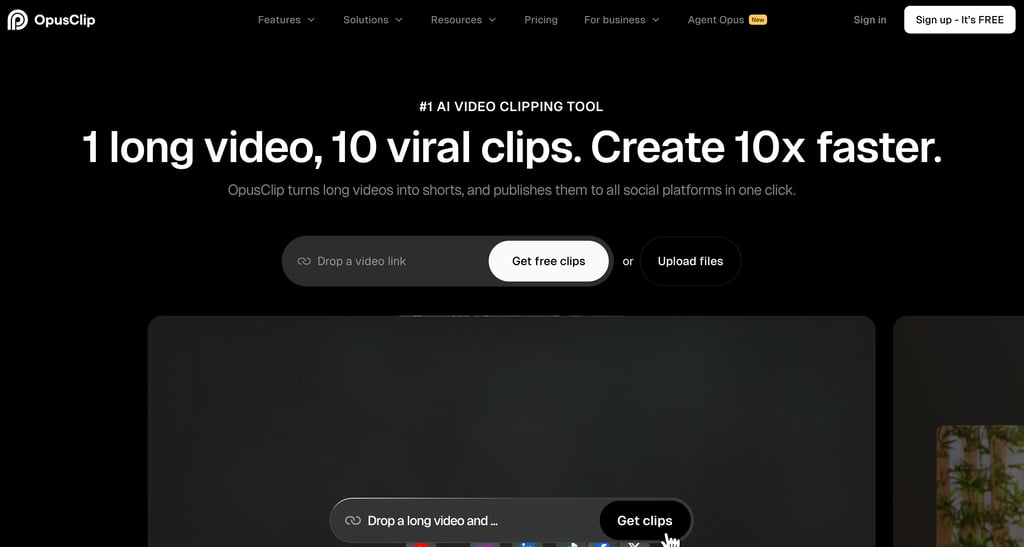
That's the problem OpusClip is trying to solve. It uses AI to automatically find the best moments in your long-form videos and turn them into short, captioned video clips that are ready to post. One click, multiple clips, no editing skills required.
I've been testing OpusClip alongside other AI video tools like Descript and InVideo, and in this review I'm going to break down exactly what it does well, where it falls short, and whether it's actually worth paying for.
Full disclosure: This post contains affiliate links. If you sign up through them, I may earn a commission at no extra cost to you.
What Is OpusClip?
OpusClip is an AI-powered video clipping tool built specifically for content repurposing — turning long-form videos into short-form video content. You give it a long video (a podcast, webinar, YouTube video, livestream) and its AI analyzes the whole thing to find the most engaging moments. Then it automatically creates multiple vertical clips with captions, transitions, and even B-roll footage.
Think of it as having a junior video editor who works in seconds instead of hours. You still need to review the clips and pick the best ones, but the heavy lifting is done for you.
It's used by over 10 million creators and has generated more than 170 million clips since launch. Companies like HubSpot, LinkedIn, and Vox Media use it for their content workflows.
How OpusClip Works
The workflow is surprisingly simple. Here's what you actually do:
Step 1: Upload a video file or paste a link from YouTube, Zoom, or other platforms.
Step 2: Give the AI optional instructions. You can tell it what topics to focus on, what clip length you want (anywhere from under 1 minute to 15 minutes), and what aspect ratio to use.
Step 3: Click "Get clips" and wait a few minutes. OpusClip analyzes your video using speech patterns, visual cues, and sentiment analysis to find the highlight moments.
Step 4: Review the clips on the results page. Each clip gets a "Virality Score" from 0-100 that predicts how well it might perform on social media.
Step 5: Edit if needed, then download or post directly to YouTube Shorts, TikTok, Instagram Reels, Facebook, LinkedIn, or X.
The whole process from upload to finished clips takes about 5-10 minutes for a 30-minute video. Compare that to the hours you'd spend manually scrubbing through footage, cutting clips, adding captions, and reformatting for vertical.
Key Features
ClipAnything
This is OpusClip's flagship AI model. Unlike earlier versions that only worked well with talking-head content, ClipAnything uses multimodal AI to analyze visual, audio, and sentiment cues. That means it can clip moments from vlogs, sports highlights, gaming streams, cooking videos, and pretty much any video format, not just someone talking to a camera.
You can also use natural language prompts to target specific moments. For example, you could tell it "find the part where I talk about pricing" and it'll zero in on that section.
Virality Score
Every generated clip gets a score from 0 to 100 based on how it compares to top-performing short-form content across social platforms. The AI looks at factors like hook strength, pacing, emotional engagement, and topic relevance.
Is it perfect? No. I've seen clips with high scores that felt generic and lower-scored clips that actually had more personality. But as a quick filtering tool when you have 10+ clips to sort through, it's genuinely useful. Think of it as a starting point, not gospel.
AI Animated Captions
OpusClip automatically generates captions with 97%+ accuracy in over 20 languages. The captions come with animated styles, similar to what you see on popular TikTok and Reels content, with keyword highlights, emoji placement, and color-coded text.
You can customize fonts, colors, and styles, and on paid plans you can upload custom fonts to match your brand. The accuracy is solid for English content. I noticed occasional punctuation issues but rarely any wrong words.
AI Reframe
When you shoot in landscape (16:9) but need vertical content (9:16), OpusClip's Auto Reframe feature automatically adjusts the video. It tracks the active speaker and keeps them centered in the frame, so you don't end up with awkward crops where someone's head is cut off.
You can also output in square (1:1) format for platforms that prefer it. The reframing works best with talking-head content and can occasionally struggle with multiple speakers moving around, but for most use cases it's reliable.
AI B-Roll
This is one of the newer features and it's still a bit experimental. OpusClip can automatically add contextually relevant stock footage from Pexels or AI-generated visuals to your clips. The idea is to break up talking-head footage and make clips more visually engaging.
It works reasonably well for generic topics like business, fitness, and technology. For niche subjects, it sometimes misses the mark. My recommendation: try it on a few clips and see if it adds value for your content type. You can always disable it or swap in your own B-roll.
Social Media Scheduler
On the Pro plan, you get a built-in social media scheduler that lets you plan and auto-post clips across all major platforms. You can schedule a month's worth of content in one sitting, which is a huge time-saver if you're trying to maintain a consistent posting schedule.
Brand Templates
You can create custom brand templates with your logo, colors, fonts, intro/outro clips, and caption styles. This means every clip that comes out of OpusClip already looks like it belongs on your channel. Starter gets one template, Pro gets two, and Business plans get more.
Export to Editing Software
Pro users can export clips as XML files compatible with Adobe Premiere Pro and DaVinci Resolve. This is great if you want OpusClip to handle the initial clipping and captioning, but you want to do final polish in your regular editing software.
What I Like About OpusClip
It's genuinely fast. What used to take me 2-3 hours of manual clipping now takes about 15 minutes, including review time. Even if I need to tweak a few clips, it's still a fraction of the effort.
The caption quality is excellent. Animated captions are basically mandatory for short-form content in 2026, and OpusClip's look professional right out of the box. No need for a separate captioning tool.
ClipAnything is a real improvement. The older AI model was really only good for interviews and podcasts. ClipAnything handles a much wider range of video types, which makes the tool useful for more creators.
Direct posting saves time. Being able to post to TikTok, YouTube Shorts, and Instagram Reels from one dashboard eliminates a lot of the copy-paste-upload workflow that eats into your day.
The learning curve is almost zero. You don't need any video editing experience. Upload, click, review, post. That's really it.
What I Don't Like About OpusClip
It's not a video editor. If you need to make precise cuts, add custom transitions, overlay graphics, or do any real editing, OpusClip can't do that. The built-in editor handles basic trimming and caption tweaks, but that's about it. For serious editing, you'll still need Descript or a traditional editor like Premiere Pro.
The AI clips aren't always usable. Expect maybe 3-5 genuinely good clips out of every 10 generated. Some clips cut mid-sentence, miss the context of a joke, or start at an awkward point. You need to review everything before posting.
Key features are locked behind Pro. AI B-roll, the social scheduler, multiple brand templates, and XML export are all Pro-only. The Starter plan feels limited once you get past the basics. Some users have noted this feels like a paywall at every turn.
The free plan is very restrictive. Watermarked exports, no editing, and clips expire after 3 days. It's fine for a test drive, but not usable for real publishing.
AI B-roll is hit or miss. As mentioned, the auto-generated B-roll works for some content types but not others. It's still labeled as a "lab" feature, which tells you OpusClip knows it's not fully baked yet.
Processing times vary. Longer videos can take a while to process, especially on the Starter plan where you don't get priority processing. Business plans get faster turnaround.
Customer support could be better. OpusClip offers chat support on Pro plans and above, but Starter and Free users are largely on their own. Some users have reported slow response times for billing issues, which is worth keeping in mind.
OpusClip Pricing
Here's what each plan costs and includes:
Free — $0/month 60 credits per month (roughly 60 minutes of video processing). Watermarked exports. No editing. Clips expire after 3 days. Good for testing, not for publishing.
Starter — $15/month 150 credits per month. Removes watermarks. Includes AI clipping with Virality Score, animated captions in 20+ languages, auto-posting, one brand template, and filler/silence removal. This is the minimum viable plan for actually using OpusClip.
Pro — $29/month (or $14.50/month billed annually at $174/year) 3,600 credits per year (available instantly on annual plan). Everything in Starter plus AI B-roll, multiple aspect ratios, social media scheduler, two brand templates, team workspace with two seats, export to Premiere Pro/DaVinci Resolve, custom fonts, speech enhancement, and chat support. This is the plan most serious creators will want.
Business — Custom pricing Everything in Pro plus priority processing, custom integrations, API access, dedicated storage, enterprise security, and a dedicated Slack support channel. Built for agencies and large teams.
One credit roughly equals one minute of video processing. So 150 credits on Starter means about 2.5 hours of video per month. If you're processing a couple of long-form videos per week, you'll likely need Pro.
The annual Pro plan is the best value. At $174/year you're getting 3,600 credits upfront (that's 60 hours of video), which works out to $14.50/month instead of $29.
Who Should Use OpusClip?
YouTubers who want to grow on Shorts. If you're already making long-form YouTube videos, OpusClip is one of the fastest ways to repurpose that content into Shorts without a second editing session.
Podcasters. Turn hour-long episodes into a dozen shareable clips for social media. This is probably OpusClip's strongest use case, since podcast content is naturally clip-friendly.
Social media managers. If you're managing content for clients or brands, OpusClip lets you produce a high volume of short-form clips without hiring additional editors.
Course creators and coaches. Repurpose webinar recordings, coaching calls, or course previews into promotional clips.
Who Shouldn't Use OpusClip?
Anyone who needs a full video editor. OpusClip is a repurposing tool, not an editing suite. If you need to cut together footage from multiple sources, add graphics, or do detailed color correction, look at Descript or InVideo instead.
Creators who don't make long-form content. If you're only creating original short-form videos from scratch, OpusClip has nothing to clip from. You'd be better served by an AI video creator.
Anyone on a tight budget who needs advanced features. The gap between the Starter and Pro plans is significant. If you need B-roll, scheduling, and team features, you're looking at $29/month minimum.
OpusClip vs Other AI Video Tools
OpusClip vs Descript: Descript is a full-featured video and podcast editor with text-based editing, AI voice cloning, and multi-track capabilities. It can do much more than OpusClip, but it's also more complex and not focused specifically on automated clipping. If you need both editing and clipping, Descript is the more versatile choice. If you just want fast automated clips from existing videos, OpusClip is more streamlined.
OpusClip vs InVideo: InVideo is primarily an AI video creator that makes videos from text prompts and templates. It's better for creating original content from scratch, while OpusClip is better for repurposing existing long-form content. Different tools for different jobs.
OpusClip vs Pictory: Pictory also does video repurposing and text-to-video, but OpusClip's ClipAnything model and Virality Score give it an edge in automated clip discovery. Pictory offers more control over visuals but less intelligent clip selection.
Final Verdict
OpusClip does one thing and does it well: it turns long videos into short clips fast. If you're a content creator sitting on hours of video content and struggling to maintain a consistent short-form posting schedule, it can genuinely save you hours every week.
The Starter plan at $15/month is a solid entry point for solo creators. If you're posting regularly and need the scheduler, B-roll, and team features, the annual Pro plan at $174/year is the best value.
Just go in with realistic expectations. You'll still need to review and curate the clips it generates. The AI is good, but it's not perfect, and your audience can tell the difference between a clip that was thoughtfully selected and one that was auto-generated and posted without review.
For most content creators making long-form video, OpusClip earns a spot in the toolkit. It won't replace your editor, but it will make repurposing feel a lot less like a chore.